Tips
How to Create AI Generated Images With ChatGPT and Nano Banana Pro
Learn how to generate AI images using free tools like ChatGPT and Nano Banana Pro. Step-by-step guide with prompt tips, image examples, and real workflow insights.
By
Widya Bayu W
Share
Introduction
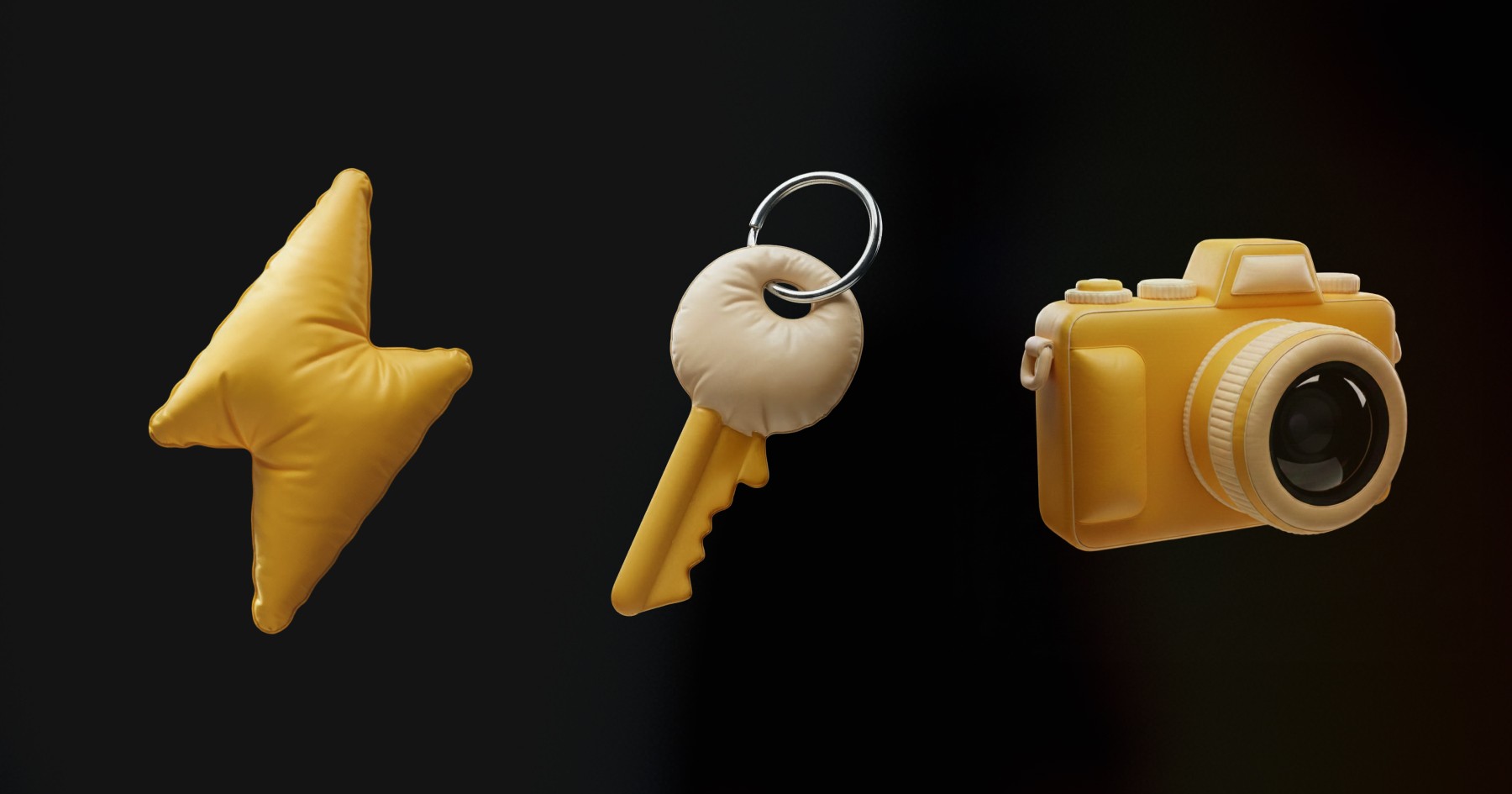
Over the past year, weve been using AI tools to create ai generated images for our Framer templates at Velox Themes. And honestly, it’s been wild watching how far these tools have come.
Some of the images look so realistic, most people can't even tell they’re AI-generated anymore.
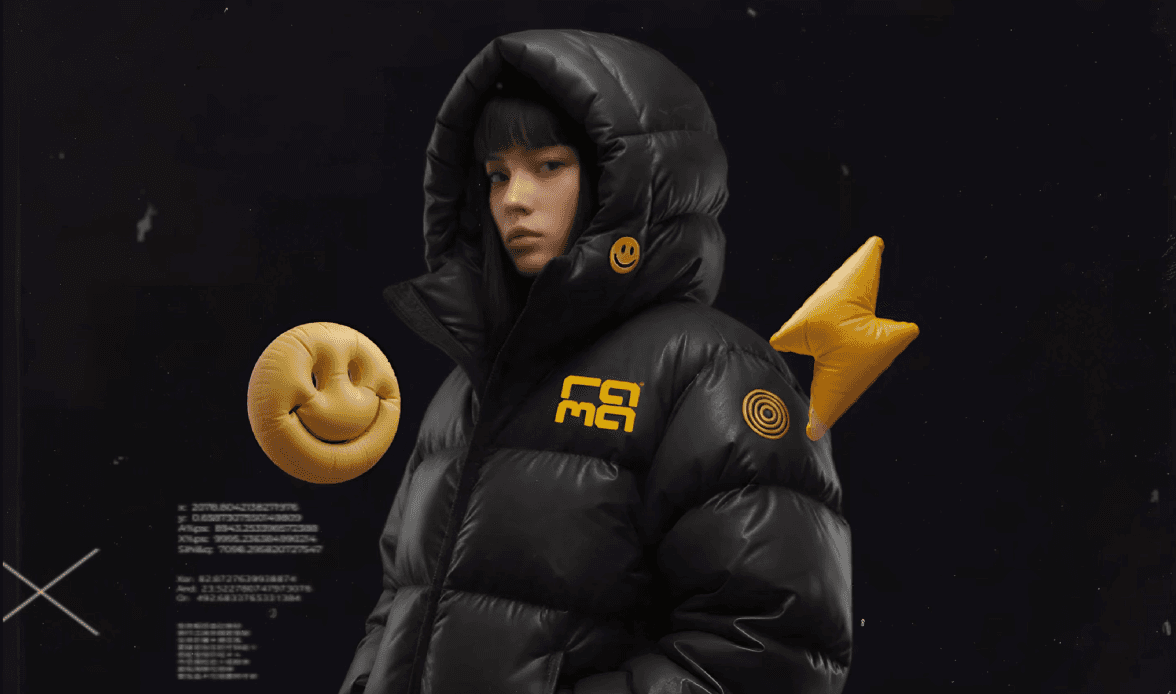
If you’ve ever tried to generate AI images, you probably realized pretty quickly that the hard part isn’t hitting the generate button. It’s writing the prompt.
The better your prompt, the better your result, especially when using the best AI image generator platforms out there.
This guide is all about helping you learn how to generate AI image from your reference. I’ll show you the exact method I use, with tools like ChatGPT and Gemini Nano Banana Pro, to save time and get great results, even when you’re using a free plan.
Why Writing Good Prompts Matters
Whether you’re using Gemini, Midjourney, or any other AI image generator, your results come down to how well you communicate your idea.
A strong AI image prompt includes clear direction about subject, mood, lighting, colors, and composition.
It’s what turns a generic visual into something that actually looks like what you imagined.
If your thought right now is “I need a prompt for an AI image that’s clear and effective,” this guide will help. Knowing how to generate AI image from text prompt is a skill anyone can learn, it just takes a little structure and the right tools.
Step 1: Start With a Visual Reference
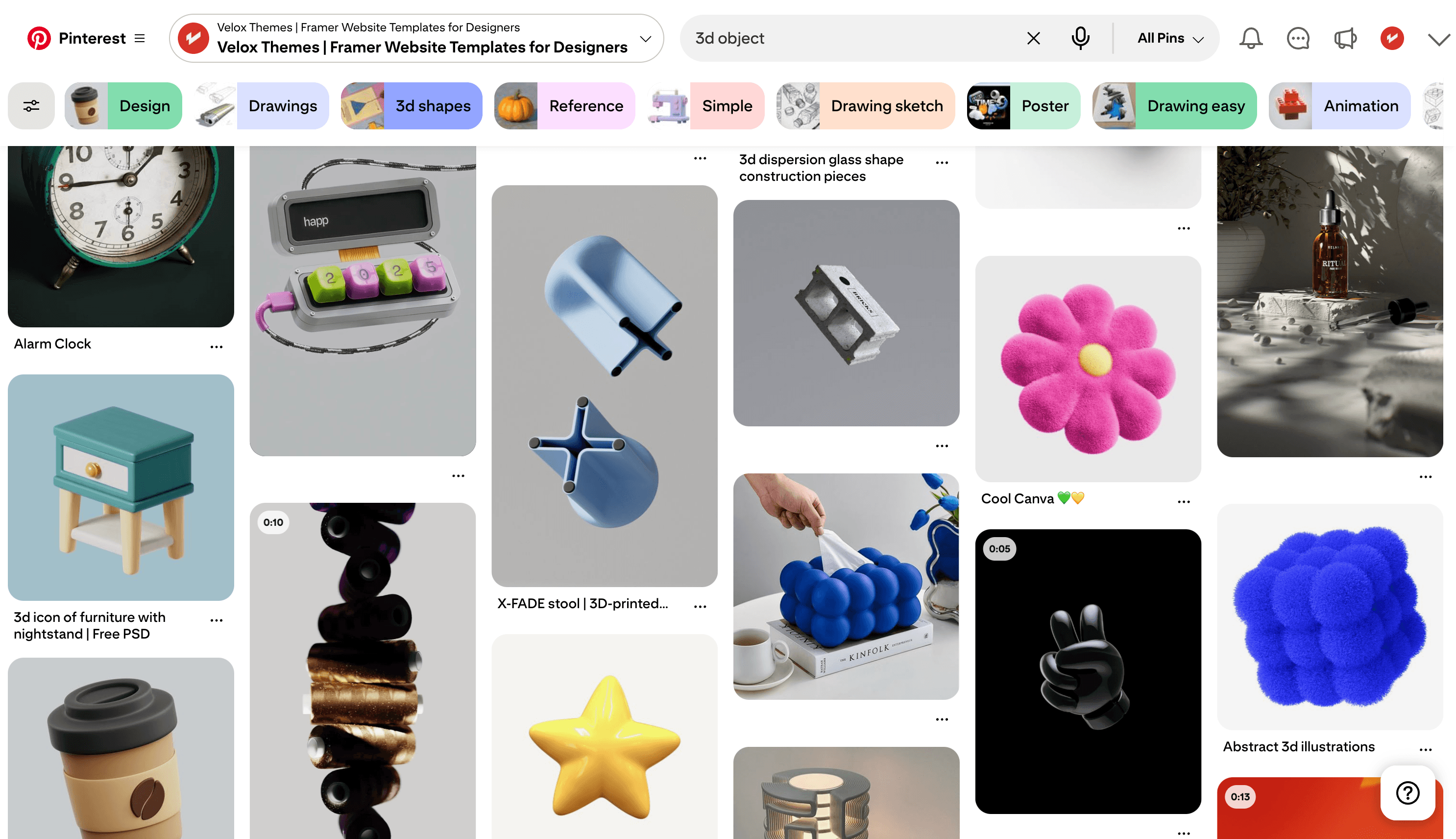
One of the biggest tips I can share is to never start from a blank page!
It’s so much easier to create a strong image when you already have a visual reference in mind. That could be anything, a photo, a layout from Dribbble, a product shot you like, or a pin from Pinterest.
When we started making images for our template assets, creating something without a reference usually took way longer and needed a lot more editing.
But when we had something to look at and guide the style, the AI generated better results right away.
You don’t need to copy the reference exactly. Just focus on what you like about it.
Is it the lighting? The layout? The color palette? These are the things that help shape your prompt.
Step 2: Use ChatGPT to Break Down the Style
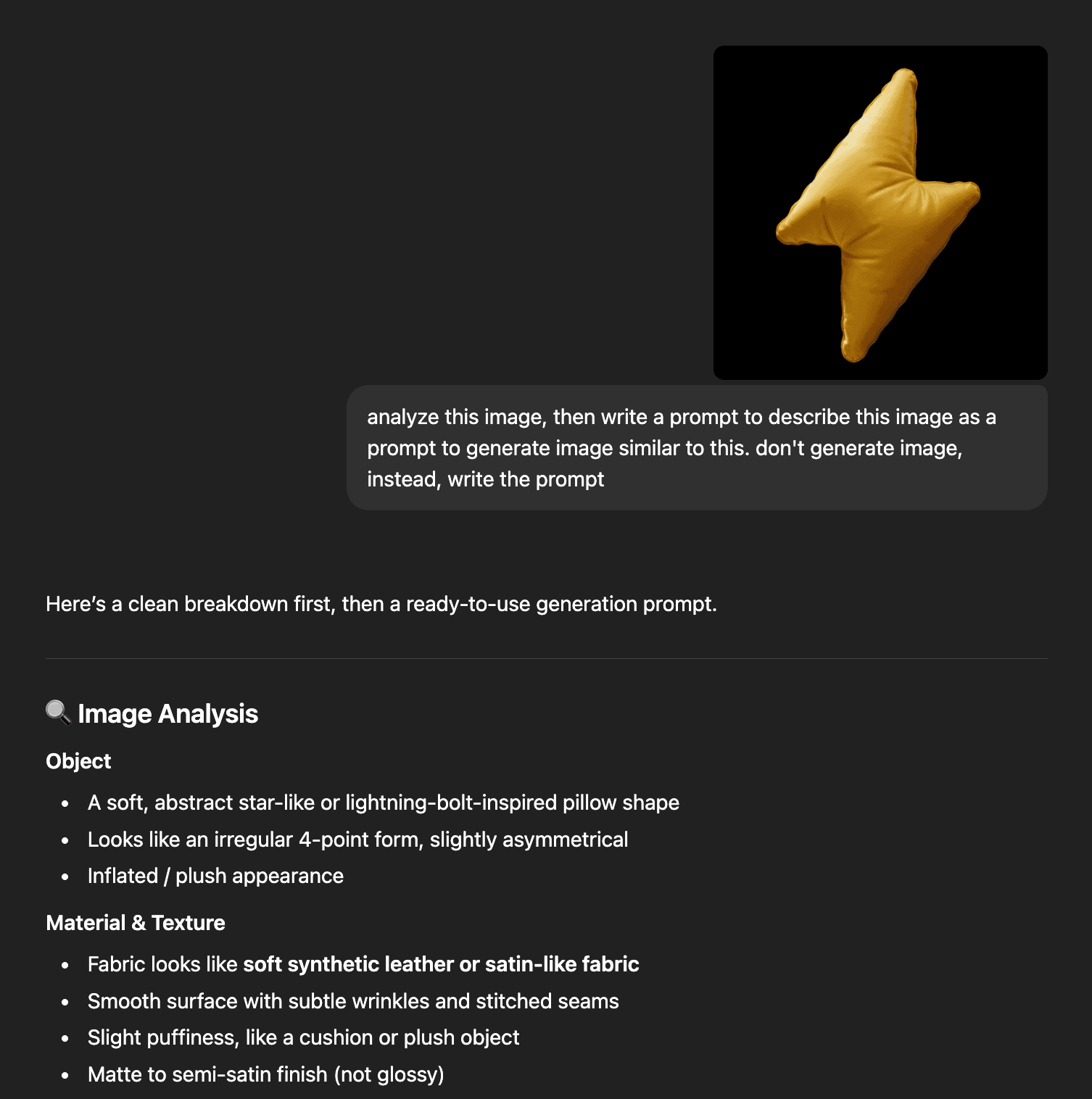
After you have your reference image, open ChatGPT and upload the image. Then ask it to write a prompt that captures the style.
You could say something like:
Analyze this image, then write a prompt to describe this image as a prompt to generate image similar to this. Don't generate image, instead, write a prompt
ChatGPT is surprisingly good at picking up on tone, colors, and structure. It’ll give you a prompt that includes key visual elements and details, which saves you time and gets you closer to the result you want.
After ChatGPT analyze your image, next you want to create a prompt out of that analysis
Make a prompt that I can apply to the logo/icon I upload
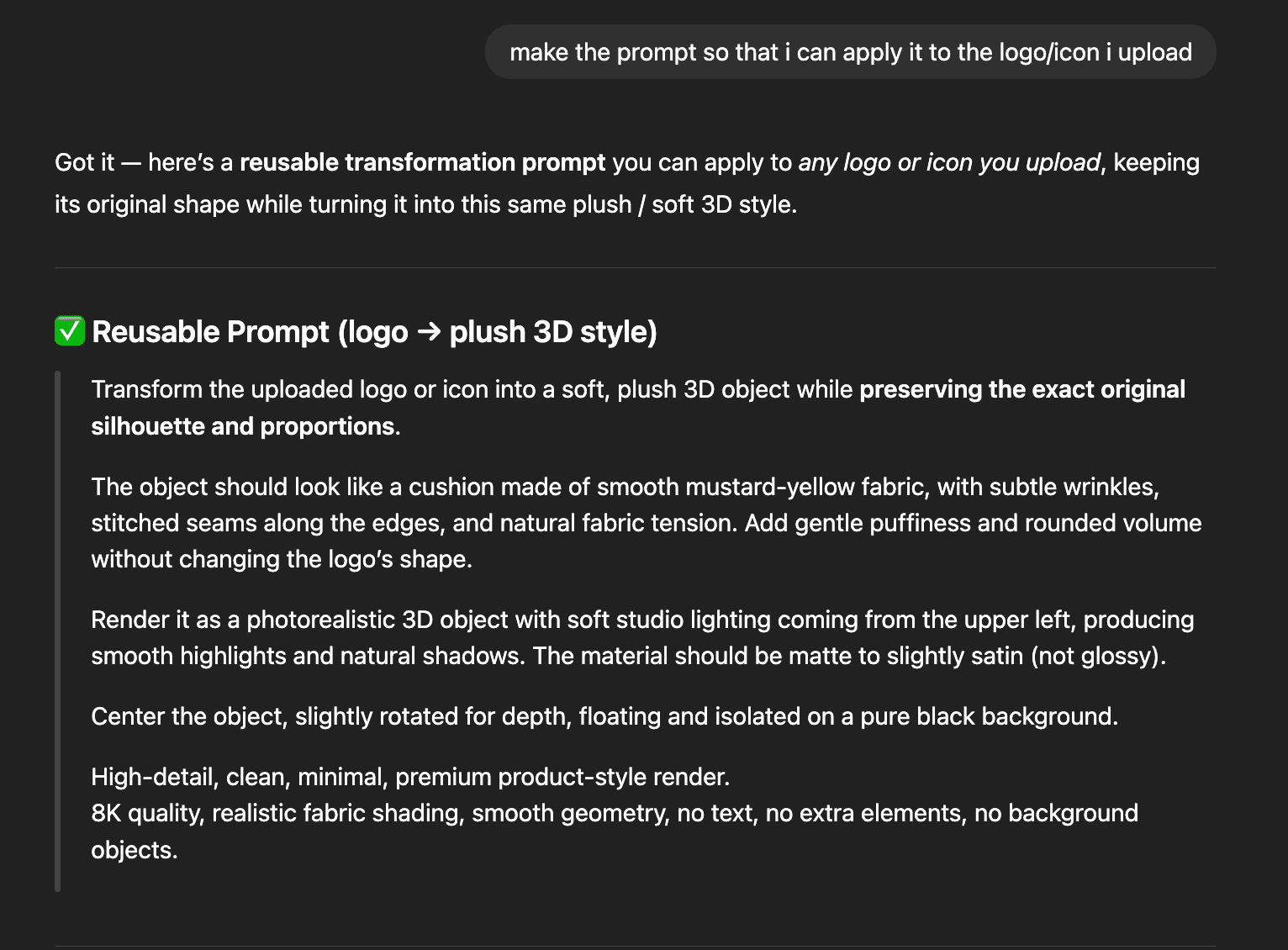
Always tweak the prompt to your liking, sometimes it may take several iterations to get the result you want.
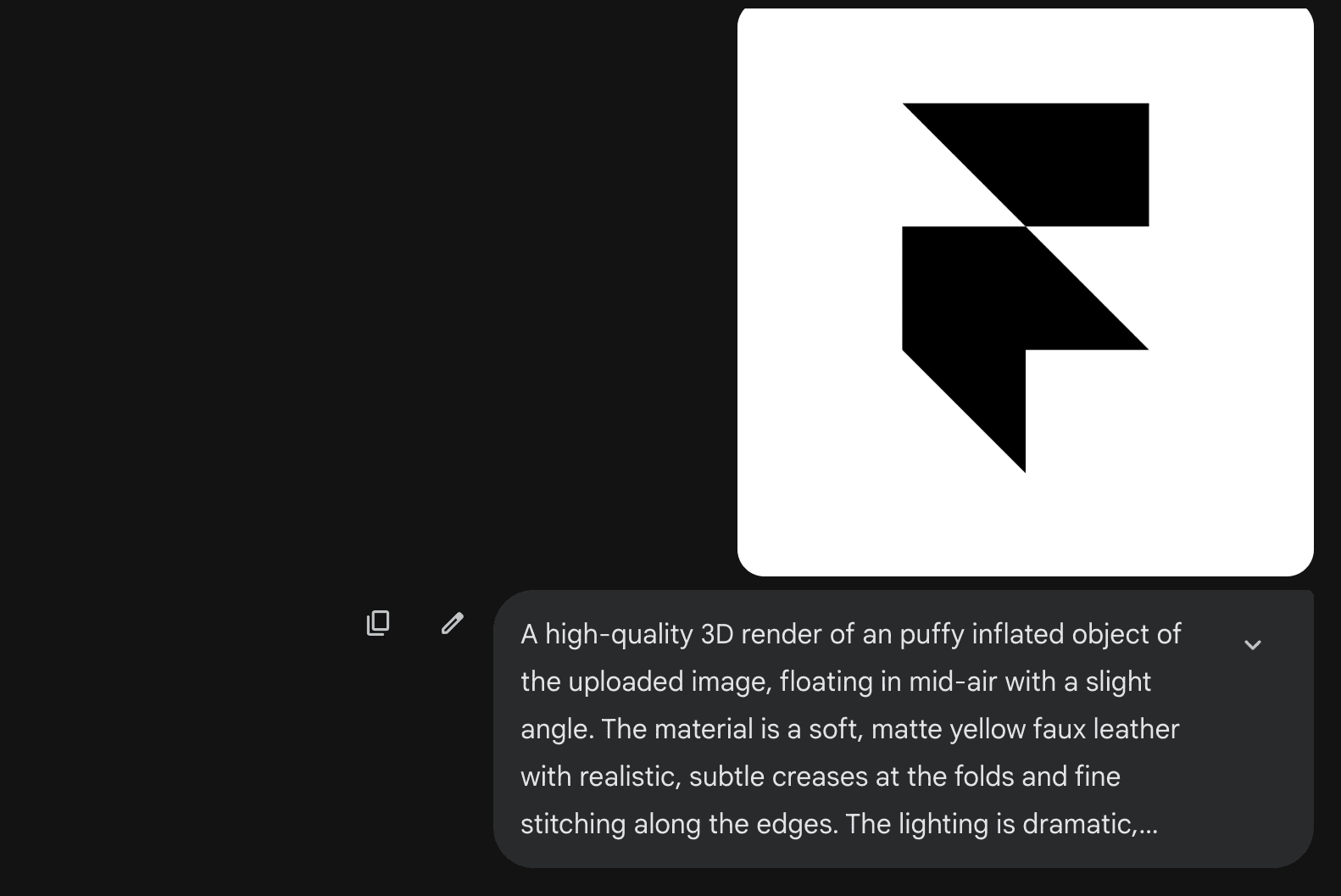
After several tweak I got a prompt that suits my needs.
A high-quality 3D render of an puffy inflated object of the uploaded image, floating in mid-air with a slight angle. The material is a soft, matte yellow faux leather with realistic, subtle creases at the folds and fine stitching along the edges. The lighting is dramatic, utilizing studio lighting from the top-left. Centered composition, isolated on a solid pure-black background without any shadow or reflection. minimalist design, 8k resolution, hyper-realistic fabric textures, Octane render style. Maintain the exact shape of the uploaded image.
Step 3: Move to Gemini and Generate
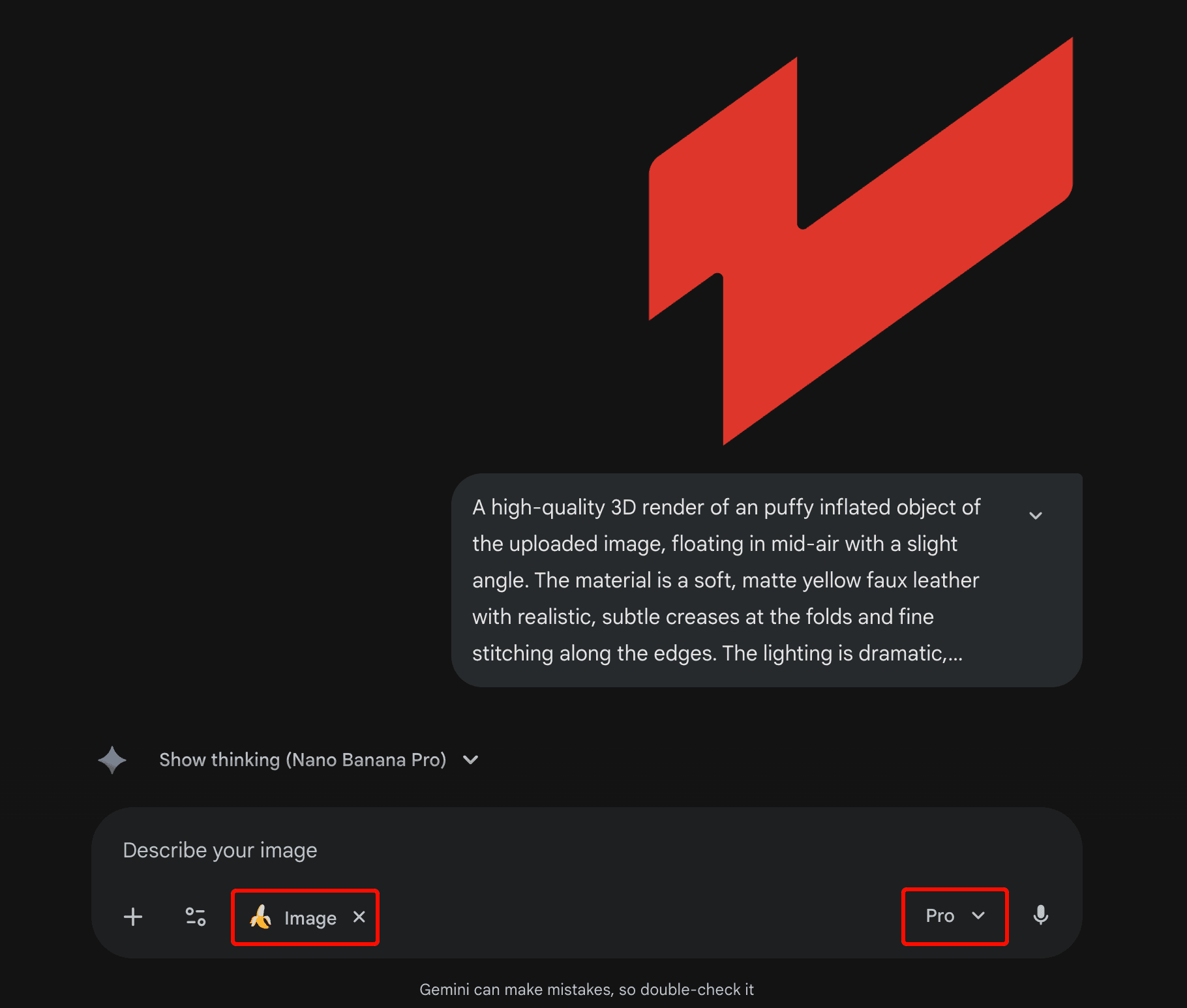
After getting your prompt from ChatGPT, open up Gemini, which in my opinion is currently one of the best AI image generator tools if you want flexibility and fast results.
Switch to “Create Images” mode, then set it to Pro for better output. You don’t need to pay anything to try it, you can generate AI image free with a few limitations, which makes it great for experimentation.
Paste your prompt in, upload any assets (like your brand logo or reference), and hit generate.
Gemini AI’s image creator, Nano Banana, does a great job interpreting prompts, especially when you're aiming for a specific style.
Step 4: Tweak and Iterate
Even with a good prompt, your first few results probably won’t be perfect. That’s totally normal.
What works best is treating prompt writing as a creative process. Try changing one thing at a time.
Maybe you want to shift the mood from soft and natural to bold and modern. Or maybe the object placement is off and needs fine-tuning.
Every time you tweak the prompt, you’re teaching the AI to get closer to your vision. This is the part where most people give up, but it's actually the most important step.
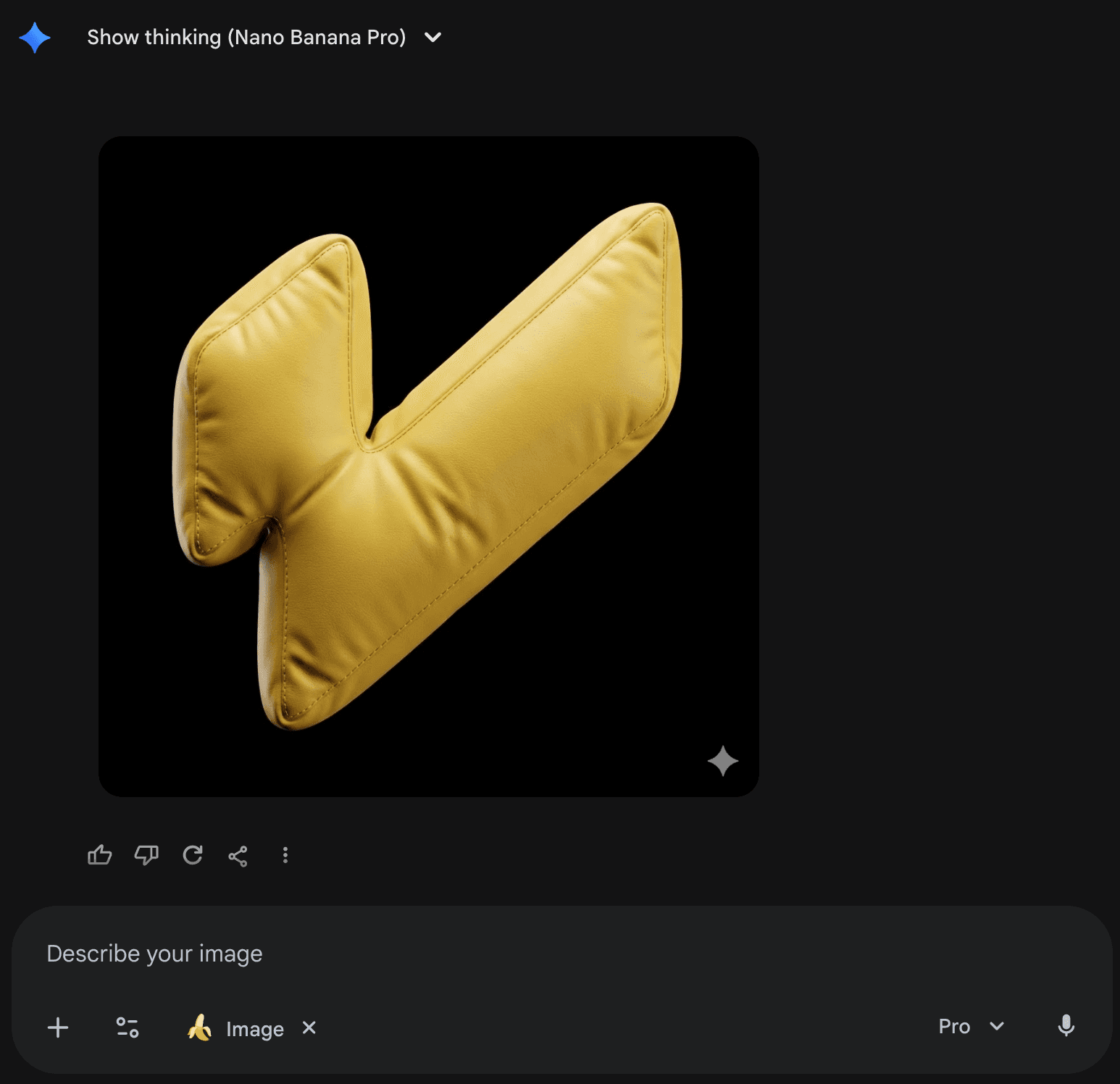
In my case, using the prompt I shared earlier, Nano Banana was able to generate exactly what I wanted in one shot. No need to tweak anything, how lucky am I :)
How We Use This at Velox Themes
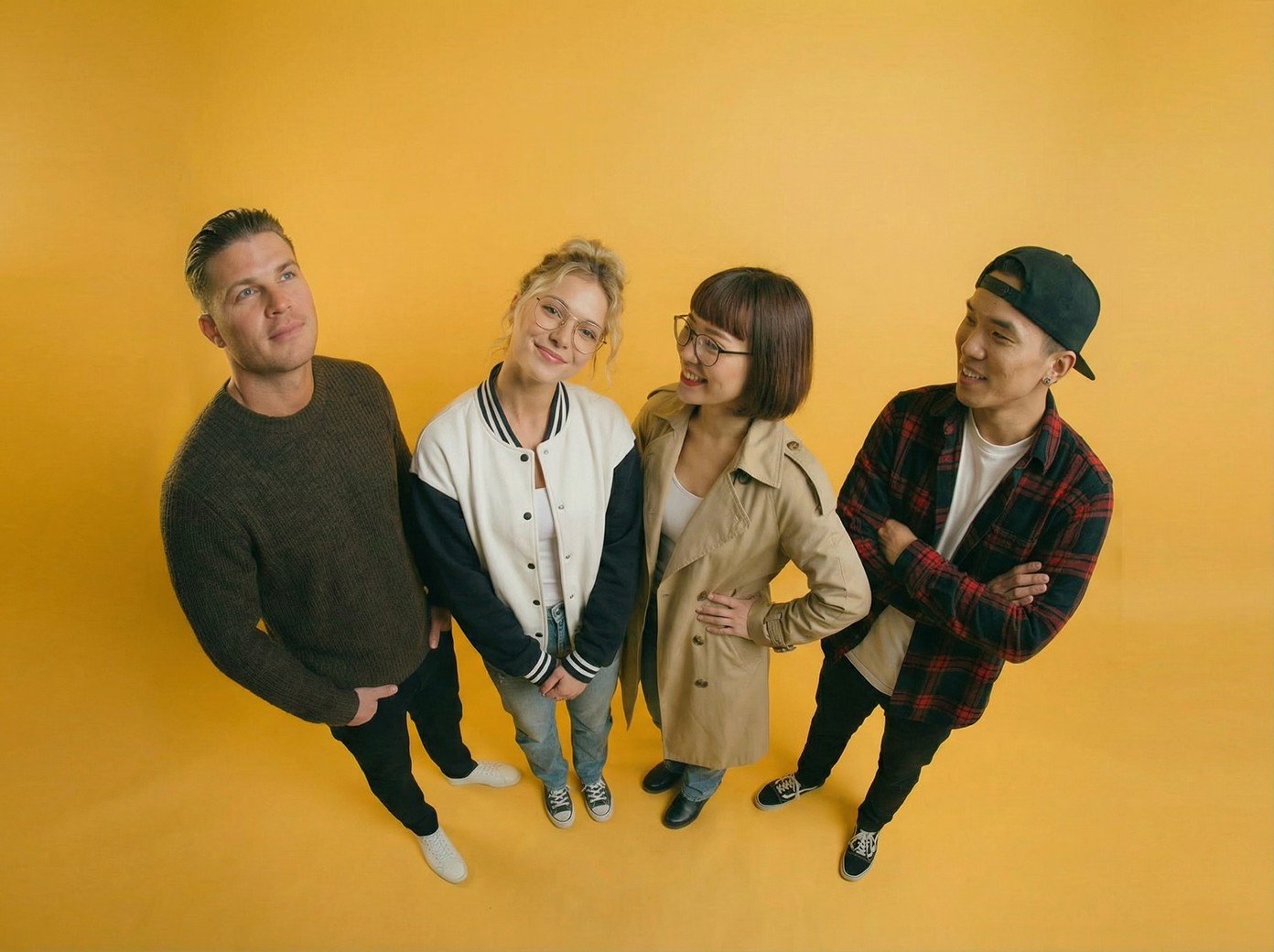
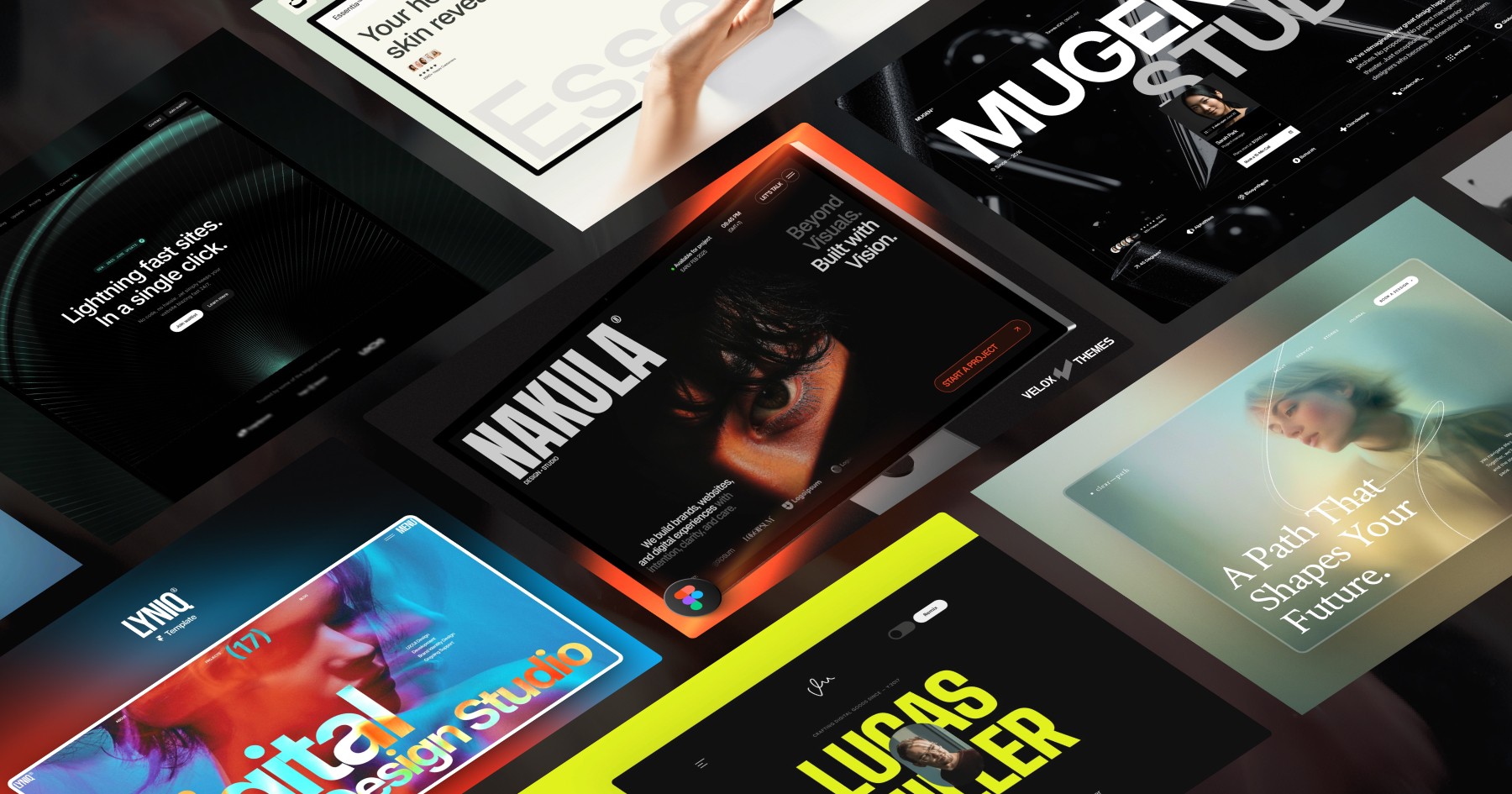
At Velox Themes, we’ve used this process to generate icons, image assets, and hero video for our Framer templates. It’s really helpful when we want something original without hiring a photographer or spending hours editing in Figma.
This prompt method helps us work faster and gives us a lot more creative flexibility when creating assets.
To make things even easier for our customers, we include the actual AI prompt used in each template.
That way, if you want to create additional matching assets, you can simply copy the prompt and generate new visuals that align with the template’s style.
No need to figure it out from scratch, we’ve already done the prompt work for you, so you can focus on building faster.
Final Thoughts
Knowing how to craft a great prompt is the secret to unlocking better AI generated images.
With the right tools, you can generate AI images from text that look polished and on-brand without needing to draw or design from scratch.
Whether you're launching a product, creating template assets, or just exploring creative ideas, mastering this workflow will save you hours and help you get consistent, on-brand visuals.
If you’re just getting started and looking to generate AI image free, tools like Gemini and ChatGPT are powerful, even on their free tiers. Combine them well and you’ll get results that feel professional, even if you're not a designer.
Meet the author
Widya Bayu W
Widya Bayu W is a Framer expert and Co-founder of Velox Themes, he has 7+ years experience in design industry and now helping designers and agencies build website faster.
Ship Fast With Quality Framer Templates
No code required
Fast support
Ship faster